Inside OkayTu
Your family walkie-talkie,
on Apple Watch and iPhone
A quick hello from the park. An “I’m OK” after practice. Hold to talk live or leave a voice message for later, using the internet connection on your family’s devices.

OkayTu on iPhone and Apple Watch
Their Watch. Your iPhone or Watch. A big Talk control for your child, with approved contacts and family settings in your iPhone app.
For a child without an iPhone, start with Apple Watch For Your Kids (Family Setup). Check your country, carrier and app availability before choosing hardware. OkayTu is available on the App Store in supported countries and regions.
For the grown-ups
Swipe to a child, talk, check in or find their last reported position.
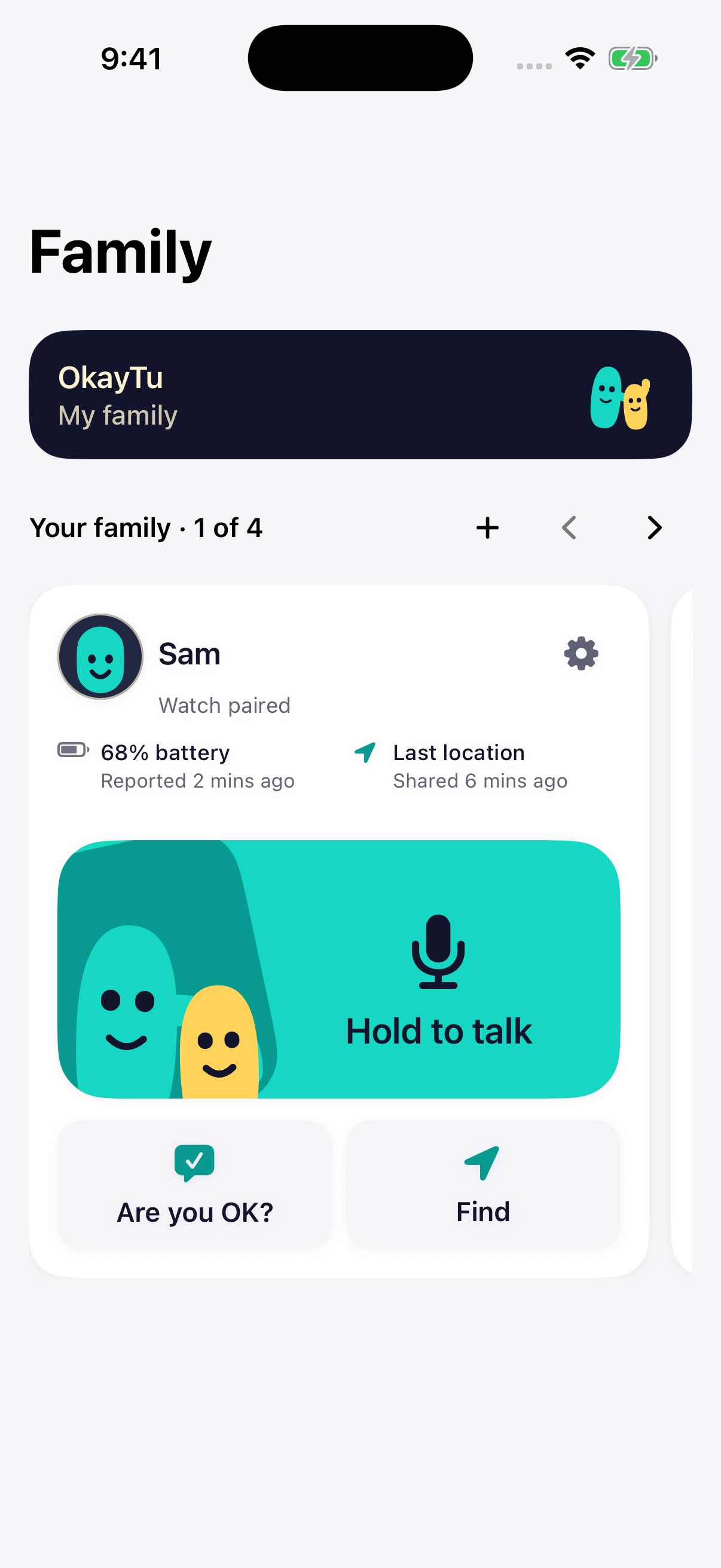
For little adventurers
One familiar person, a big Talk area and clear OK, Find and Help actions.
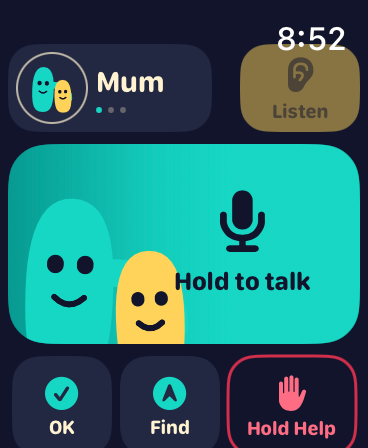
For parents on the move
Talk, check in and find a linked child from your own paired Apple Watch.
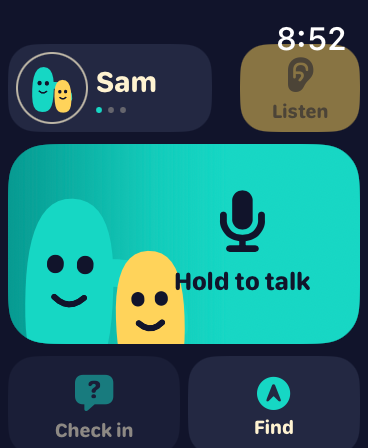
Talk, without the typing
Hold to talk: a family walkie-talkie
“Can I stay a little longer?”
Hold Talk, speak, then let go. When both ends are ready and connected, voice streams while you speak. A completed recording is also saved as an encrypted message for another moment.
- Take turns naturally. See when someone is speaking or a reply is playing.
- A recording to return to. Replay a message or catch up on missed voice messages.
- Know when it was heard. Sent, Delivered and Heard help you follow a message without guessing whether someone listened.
Live availability depends on the devices, app state and network. Saved-message delivery and notifications can be delayed. Background listening does not turn on your microphone.
OkayTu uses Wi-Fi or cellular internet, so both devices need a connection for live talk. See how a family walkie-talkie app works on Apple Watch.
The clip could not load. Try again, or read the steps below.
The Watch Talk experience
See the Watch’s held-Talk screen, its Release to send instruction and Tu and Pip in motion. Silent app preview.
App recording with a sample family. No real location or message delivery is shown.
Small check-ins
Quick check-ins: “I’m OK” with one tap
A little “I’m OK” goes a long way.
Kids can send an OK check-in without recording a voice message. On your iPhone, the child’s status includes when they said it, so an old check-in is not mistaken for a new one.
Need to check first? Send Are you OK? The child’s Watch can read that prompt aloud and offer a clear tick or cross response.
A check-in is a message from your child, not a guarantee of their current safety. Spoken prompts depend on the selected settings and the Watch’s audio state.
When they need their family
Help: let their grown-ups know
“I need you.”
When a child holds Help, OkayTu alerts their approved parents and caregivers. A prominent alert on the parent iPhone brings Talk and Find forward. Large controls on the child’s Watch keep the next step simple.
- Know who needs you. The alert identifies the child, not just “a new message”.
- Talk or find. Open the conversation or check the latest available location.
- A clear way to finish. Silence the local alert separately from resolving Help. A child can hold to cancel when it was a mistake.
The clip could not load. Try again, or read the steps below.
The child’s Help screen
Help keeps Talk, Find and Hold to cancel together on the child’s Watch. App preview with an example Help alert.
App recording with a sample family. No real location or message delivery is shown.
A little help finding each other
Find: last location with the time it was seen
“I’m by the other gate.”
Find brings a direction and distance into the conversation when usable positions are available. On iPhone, switch between Compass and Map, or open walking, driving or cycling directions where Apple Maps supports that route type. Maps features vary by country and region.
- Parent finding a child: request a linked child’s location without a fresh acceptance each time, once location setup is complete.
- Child finding a parent: send a Find invitation. The parent receives a notification or in-app prompt and joins the sharing session.
- Always check the age. A timestamp and accuracy estimate help distinguish a fresh fix from a last known position.
The compass is approximate, not Apple Precision Finding or a safe walking route. Faster updates are temporary and not guaranteed. Apple Maps opens with the position available at that moment, not a continuously moving destination.
The clip could not load. Try again, or read the steps below.
An approximate direction on the Watch
Direction and distance on the Watch, shown with simulated locations. Real Find sessions need location permission and an internet connection.
App recording with a sample family. No real location or message delivery is shown.
Your family, your way
Approved family contacts only
Familiar faces. Fewer decisions on a tiny screen.
Choose the people a child can talk to, including approved siblings and more than one parent. Use Mum, Mom, Dad, Grandma or the name your family prefers.
Make it recognisable
Pick an avatar or crop and centre a family photo. Use familiar faces and the names your family knows.
Bring another parent in
Send a branded OkayTu email or share an invitation through Messages. Each child’s contacts stay a separate choice.
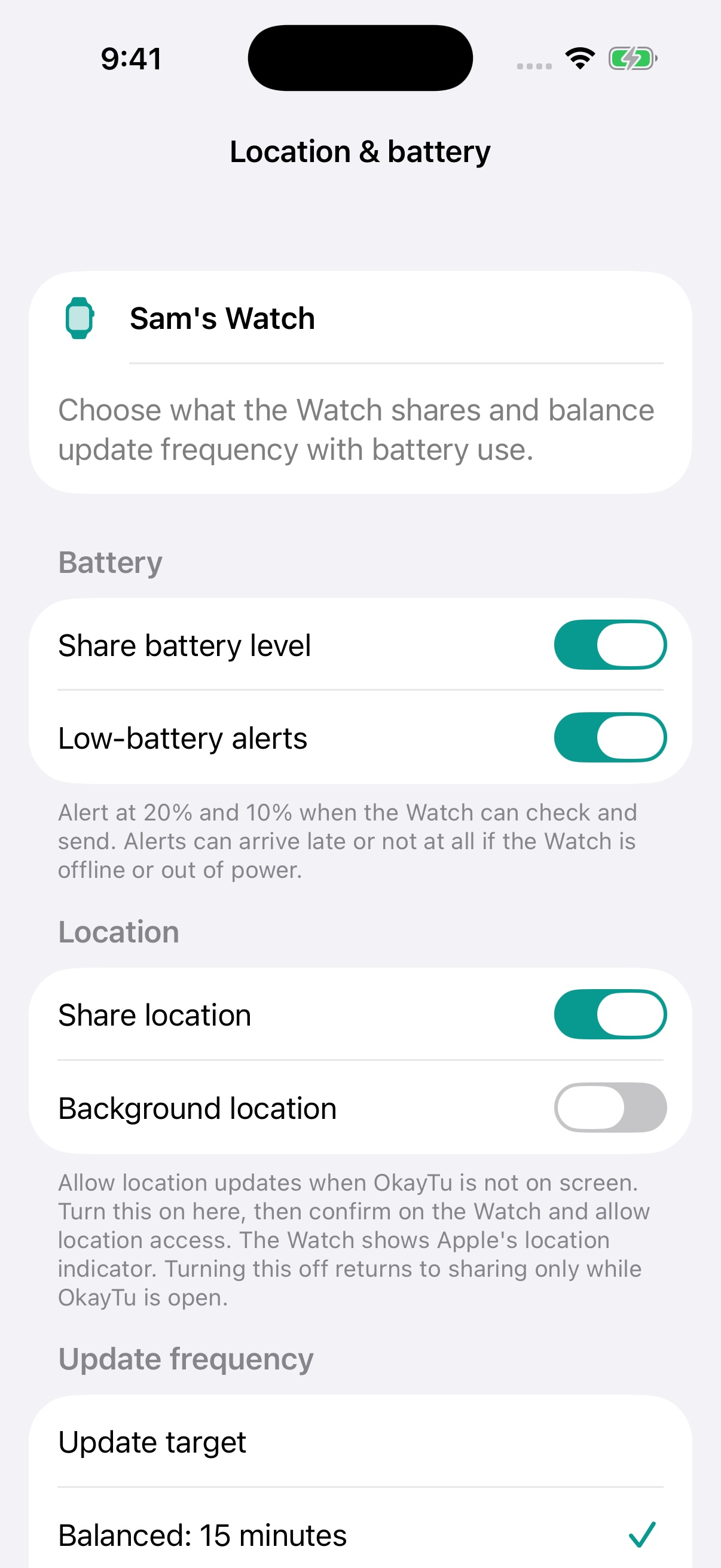
Choose device reports
Choose location and battery reports, with low-battery alerts. Reports depend on the Watch’s permissions, connection and background availability.
Keep access parent-led
Pair Watches with a short code and manage approved family connections. There is no public contact discovery.
Choose live talk, voice messages or quick messages, plus a Watch layout that suits your child. These settings apply inside OkayTu; manage Apple’s device settings separately.
Catch up at your pace
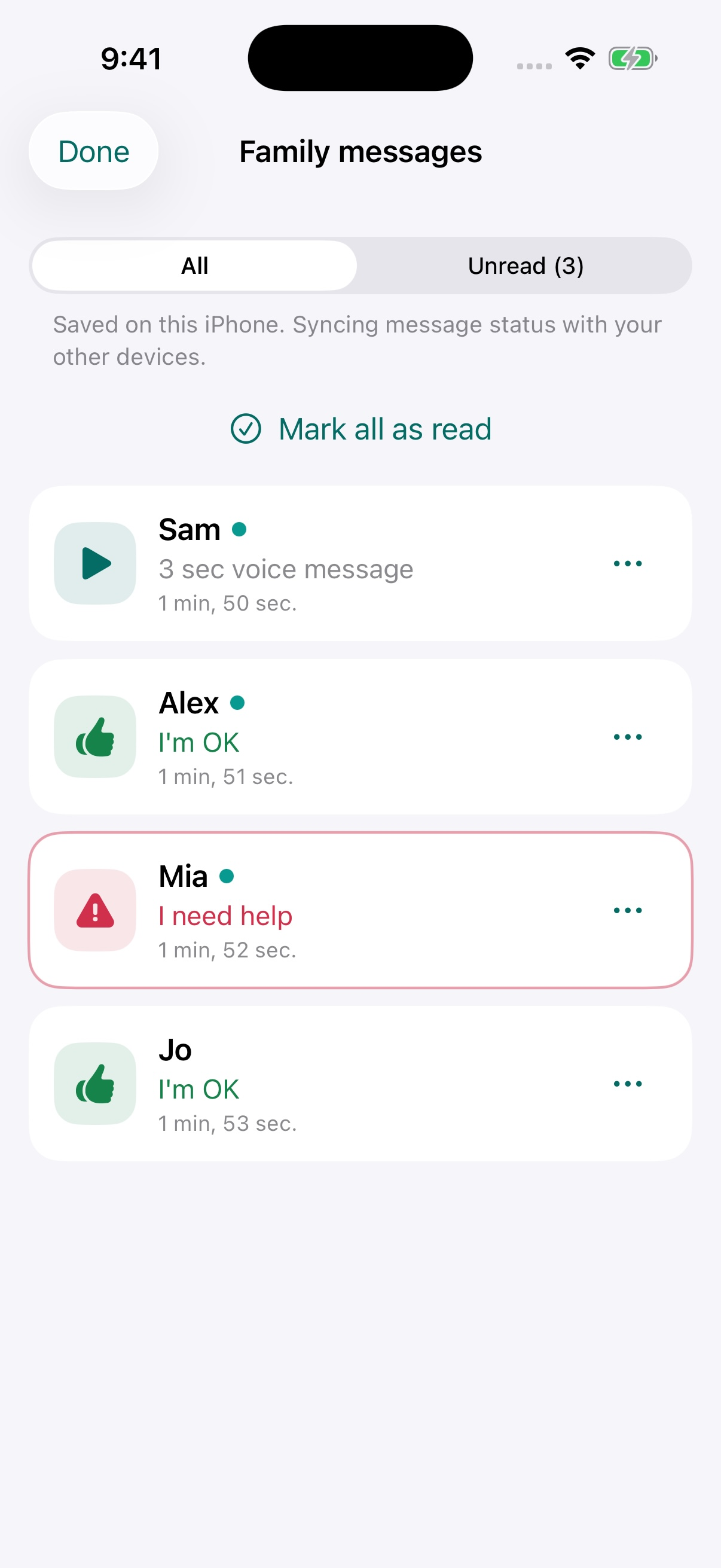
Missed messages wait in the inbox
A missed hello is still there.
Play missed voice messages oldest first, stop when you need to, or come back later. Swipe up on Watch for message history, with an on-screen control available too.
Bring your family into the conversation.
Start on your iPhone, create your family and choose a monthly or yearly plan. Live Talk, voice messages, check-ins and Find requests are included, with no separate OkayTu charge for each approved caregiver.
Need to check your Watch first? See device requirements and installation steps. Watch hardware and cellular service are separate costs.